Subscribe to join thousands of other ecommerce experts
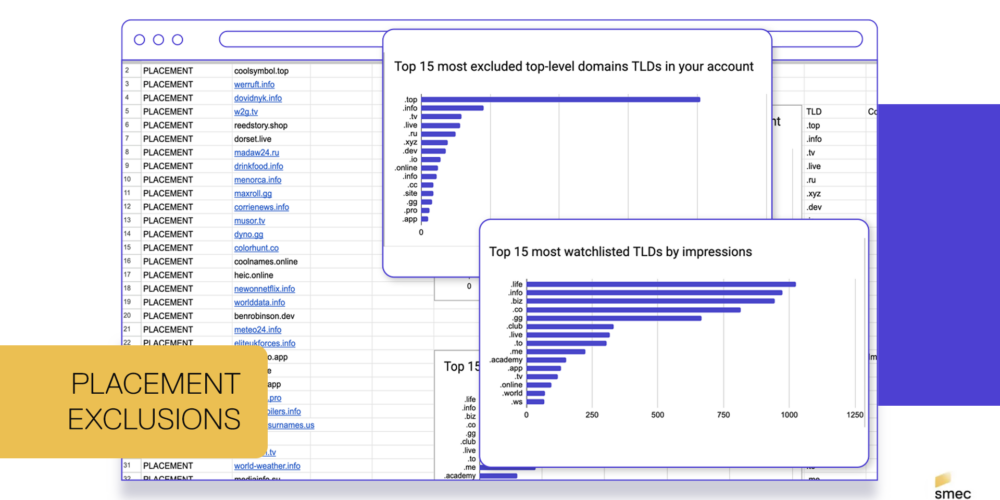
Placement Exclusions in PMax are a brand safety control that prevents your Google Ads from appearing on specific websites, apps, or YouTube channels that do not align with your brand values. In Performance Max (PMax), these exclusions are critical because the campaign type serves ads across Google's entire inventory, often exposing budgets to low-quality Display sites and mobile apps known as "zombie inventory". To effectively identify and block these toxic placements, tools like the smec Google Ads Placement Scanner are essential for auditing PMax placements and creating data-backed exclusion lists.
Unlike Search campaigns, PMax does not support Placement Exclusions at the individual campaign level by default. Instead, advertisers must apply Account-Level Placement Exclusions or use Manager Account (MCC) Exclusion Lists to block toxic inventory.
Mastering this process is essential for PPC Managers who need to reduce wasted ad spend and keep Performance Max campaigns in check.
Table of Contents
What are Placement Exclusions in PMax?
Placement Exclusions in PMax act as a negative targeting signal for Google’s algorithms. When you add a URL, mobile app category, or YouTube channel to an exclusion list, you command the system to stop bidding on impressions from those specific sources.
For Performance Max specifically, these exclusions are a necessary defense mechanism. Because PMax prioritizes reach and conversion volume, it will naturally seek out low-cost inventory—often found on gaming apps, parked domains, or click-bait websites—unless explicitly blocked.
What are the benefits of excluding placements in PMax?
Proactively managing your placement exclusions delivers three quantifiable benefits to your account:
- Reduced wasted spend: By blocking “toxic” placements that generate clicks but no conversions (spam sites, toddler apps), you force the PMax algorithm to reinvest that budget into high-intent channels like Search and Shopping.
- Brand safety: Exclusions prevent your premium brand assets from appearing next to sensitive content, political extremism, or low-quality “Made for Advertising” (MFA) websites.
- Algorithm guidance: Every exclusion is a signal. By removing junk inventory, you train the machine learning model to focus on the placements that actually drive business results.
Where can I find the Performance Max placement report?
Accessing placement data requires navigating to a specific pre-defined report within the Google Ads dashboard. Follow this navigation path to view the raw data:
- Open ‘Campaigns’: In your Google Ads account, click the Campaigns icon
 .
. - Navigate to ‘Report editor’: Click the Insights and reports drop-down menu and find ‘Report editor’.
- Find section ‘When and where ads showed’: Scroll down to pre-defined reports and find the section ‘When and where ads showed’.
- Launch the Report: Click Performance Max campaigns placement.
This action generates a detailed table listing every website, mobile application, and YouTube channel where your Performance Max campaigns have served impressions.
The problem: Finding bad placements is harder than fixing them
While generating the report is a standardized process, analyzing it presents a significant resource challenge. The native report delivers a raw, unsorted list that creates several hurdles for PPC managers:
- Sheer volume: The report often contains tens of thousands of URLs and mobile app IDs, making manual review impossible at scale.
- Data opacity: High-volume, legitimate placements (e.g., nytimes.com) are intermingled with a massive “long tail” of low-quality inventory, masking where budget is actually being wasted.
- Lack of filters: There are no native filters to easily isolate “toxic” placements—such as click-bait farms or MFA (Made for Advertising) sites—from niche but safe domains.
- Manual inefficiency: Without automated scoring, managers are forced to audit URLs line-by-line, a process that is inefficient and highly prone to error.
How can I find bad placements in PMax?
The easiest way to find bad placements in PMax is by using the Performance Max Placement report alongside smec’s Google Ads Placement Scanner. This free script is designed to transform messy URL dumps into a prioritized “Stop List” for immediate action.
Why use the smec Google Ads Placement Scanner?
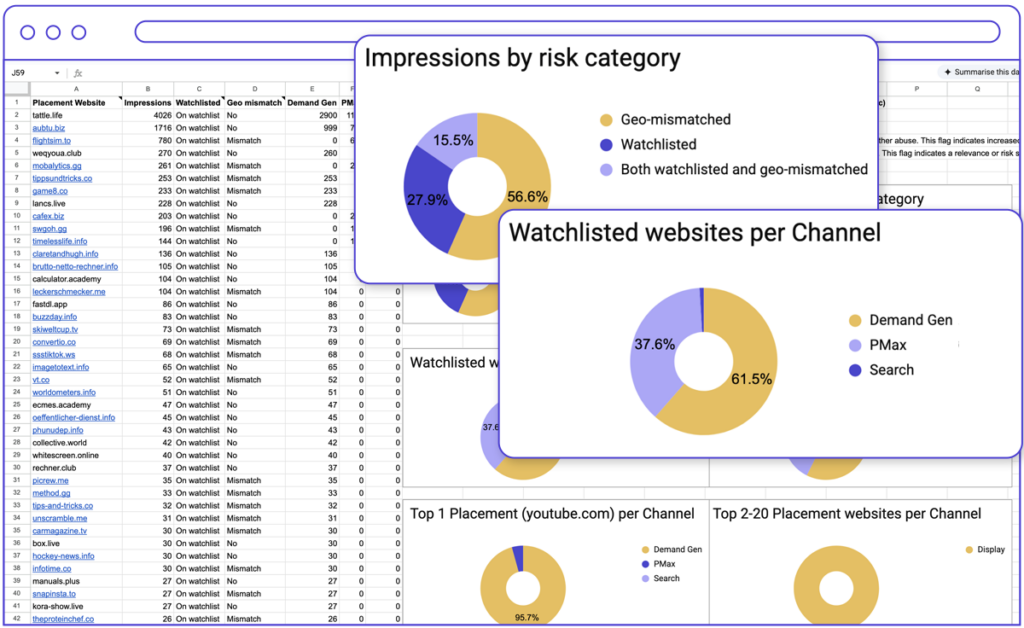
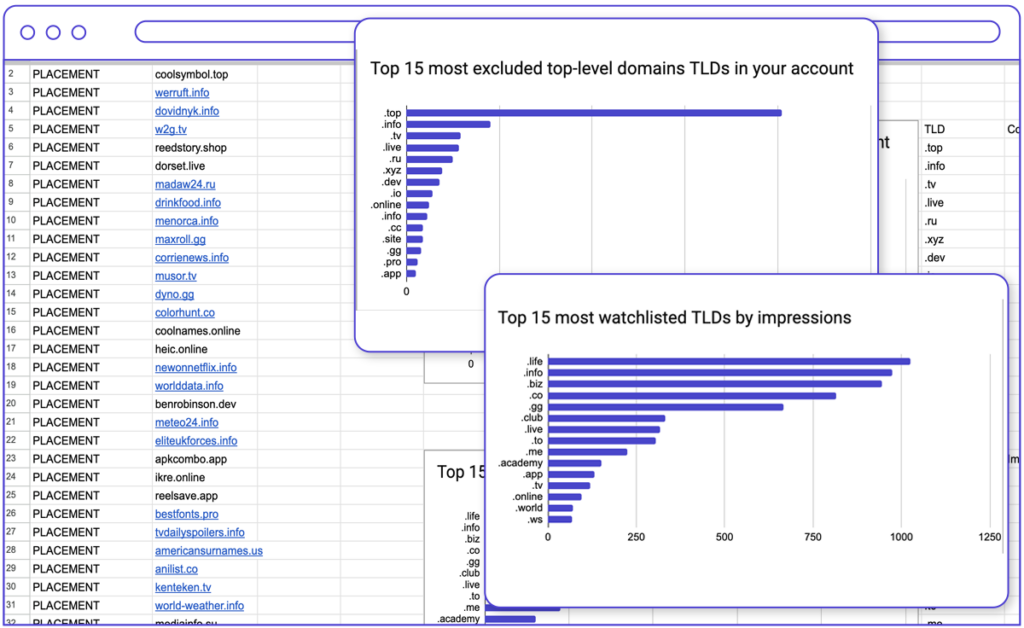
- Automated risk detection: The script automatically flags “toxic” websites by cross-referencing your placements against a database of 125+ known abuse TLDs (based on research from Spamhaus, ICANN, and others).
- “Who Did It” visualization: It generates Donut Charts that break down impressions by channel, revealing exactly which campaign type is driving the risk.
- Geographic relevance auditing: It identifies placements that are geographically mismatched with your targeted location, a common sign of bot traffic.
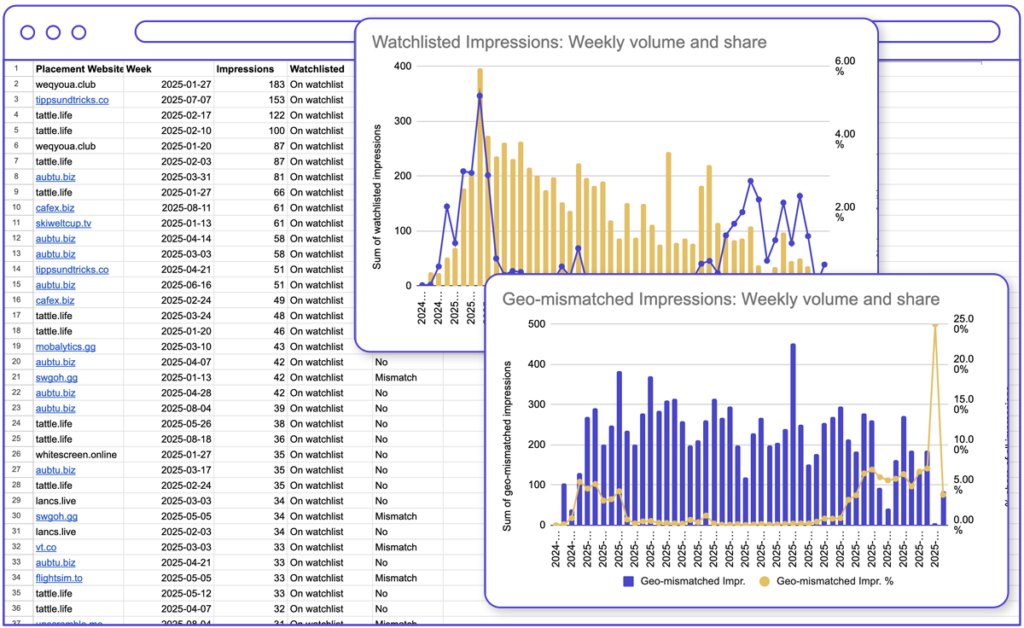
- Weekly health trends: The visual dashboard tracks your clean-up progress, showing the percentage of impressions served on watchlisted sites over time.
By using this script, you move from reactive guessing to proactive auditing, identifying the exact domains bleeding your budget.
How to use smec’s Google Ads Placement Scanner
The scanner is designed to be deployed directly within your Google Ads account, bypassing the need for third-party software installation. Follow these steps to set it up:
- Create the script: In your Google Ads account, navigate to Tools > Bulk actions > Scripts. Click the plus button to create a new script.
- Install the code: Delete any placeholder code in the editor. Copy the code provided on the smec download page (after registration) and paste it into the script editor.
- Connect a spreadsheet: Create a new, empty Google Sheet. In the script code, locate the line const SHEET_URL = ‘https://…’; and replace the placeholder URL with the URL of your new Sheet.
- Run and audit: Click “Run”. The script will execute and output the audit dashboards directly into the connected Google Sheet.
Step-by-Step: How to exclude placements in PMax
Once you have identified your list of toxic placements using the smec Placement Scanner, you need to apply them. Since PMax lacks campaign-level controls, you must use the Account-Level settings.
Method 1: Account-Level Exclusion (best for single accounts)
This method applies the exclusion to every campaign in your account (Search, Display, Video, and PMax).
- Navigate to ‘Content’ settings: In your Google Ads dashboard, go to Tools > Content Suitability.
- Access ‘Advanced Settings’: Click on the Advanced settings dropdown menu.
- Select ‘Excluded Placements’: Expand the section labeled Excluded placements.
- Enter your ‘Stop List’:
- Click the Enter tab.
- Paste the list of toxic URLs or app IDs you exported from the smec Placement Scanner.
- Tip: Exclude mobileappcategory::69500 to block the “Games” category entirely if mobile gaming apps are not relevant to your audience.
- Save: Click Save. These exclusions will now apply to all PMax campaigns in the account.
Important Caveat: This is a global setting. If a PPC manager has one PMax campaign for Brand Awareness (where broad reach is acceptable) and another for Target CPA (where strict efficiency is required), they cannot have different placement strategies using this method. The exclusions you apply here will block those placements for all campaigns in the account simultaneously.
Method 2: MCC Exclusion Lists (best for scale)
If you manage multiple accounts, use a Manager Account (MCC) list to enforce global brand safety standards.
- Create the List: In your MCC, go to Tools > Shared Library > Exclusion lists.
- Add Placements: Create a new Placement exclusion list and paste your toxic domains.
- Apply to Accounts: Select the list and apply it to the specific sub-accounts running PMax campaigns.
Conclusion
Placement Exclusions are no longer optional for Performance Max; they are a requirement for efficiency. While PMax offers powerful automation, it requires human governance to prevent budget leakage on low-quality inventory.
By combining the smec Google Ads Placement Scanner for detection with Account-Level Exclusions for enforcement, PPC managers can effectively “box in” the AI, ensuring it operates only on inventory that meets their standards for quality and performance.
Don’t let PMax waste your budget on bad placements. Audit your placements weekly, exclude the toxicity, and force the algorithm to compete for the users that actually matter.
P.S. While this guide focuses on reigning in Performance Max, the smec Google Ads Placement Scanner script is campaign-agnostic. You can use the exact same script to audit and clean up your standard Display, Search, Demand Gen campaigns, giving you a complete view of your account’s brand safety.